
Snapchat has evolved far beyond a teen-centered social app it’s now a powerful advertising platform with over 750 million monthly users. Brands targeting Gen Z and Millennials are leveraging Snapchat Ads Manager to drive awareness, generate leads, and convert casual scrollers into customers. If you’re not yet tapping into this vibrant platform, you’re leaving engagement (and revenue) on the table.
Learning how to navigate Snapchat Ads Manager is your gateway to cost-effective, targeted advertising. Whether you’re launching your first campaign or optimizing existing ones, mastering the campaign setup process is essential. In this tutorial, you’ll learn how to set up Snapchat campaigns the right way—step by step using features built to grow your brand.
What Is Snapchat Ads Manager?
Snapchat Ads Manager is the centralized platform where advertisers create, manage, and analyze all ad campaigns on the Snapchat network. It’s free to use and offers tools for audience targeting, budget control, creative design, and performance tracking all in one streamlined dashboard.
It supports various campaign objectives like app installs, website visits, lead generation, and video views. Its intuitive interface and guided setup make it accessible to beginners, while advanced features like pixel tracking, goal-based bidding, and custom audiences cater to seasoned marketers.
Who Should Use Snapchat Ads for Marketing?
Snapchat Ads are ideal for businesses targeting younger demographics especially Gen Z and millennials. Brands in fashion, beauty, entertainment, gaming, and tech often find strong engagement here due to the platform’s highly visual and interactive nature.
Even small businesses and startups can benefit from Snapchat’s localized targeting and affordable campaign options. If your brand thrives on creativity, visual storytelling, or influencer marketing, Snapchat Ads can help you build awareness, drive action, and scale results with relatively low entry costs.
Step-by-Step Snapchat Campaign Setup Tutorial
Below is the step by step Tutorial given for Snapchat campaign Setup:
1. Set Up Your Snapchat Business Account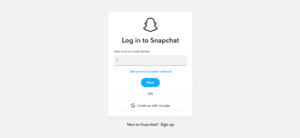
Before you can launch a campaign, you need a Snapchat Business account. Visit business.snapchat.com and click Get Started. You’ll be prompted to enter basic information like your business name, email, and country of operation.
Once the account is created, you’ll be directed to the Ads Manager dashboard. From here, you can link a payment method, assign roles to team members, and set up your Snapchat Pixel to begin tracking conversions. These initial steps are crucial for maintaining transparency and control over your ad spending and performance.
2. Choose a Campaign Objective
Snapchat Ads Manager will first ask you to select your campaign objective. This determines how Snapchat delivers and optimizes your ads. Common objectives include Awareness, Consideration, and Conversions, with sub-goals like app installs, video views, or website visits under each category.
Choosing the right objective aligns your campaign with your business goals. For instance, if you’re promoting a product launch, a “Conversions” objective with Pixel tracking can help measure ROI more effectively than a general awareness campaign. Take time to define your goal clearly before proceeding.
3. Define Your Ad Set and Audience Targeting
Once your objective is set, you’ll move on to creating an ad set. This includes defining your target audience, placement, budget, and schedule. Snapchat allows you to target users by location, age, gender, language, interests, devices, and even behavior on and off the app.
You can also use Custom Audiences, Lookalike Audiences, or Snap Pixel Retargeting to reach people already familiar with your brand. Narrowing down your audience ensures your ad reaches the right users, saving you money and increasing the chances of conversions.
4. Set Your Budget and Schedule
Snapchat offers flexibility with daily or lifetime budgets. For each ad set, you’ll be prompted to input how much you want to spend and the duration of the campaign. You can also set delivery types: Standard Delivery spreads your spend evenly, while Accelerated Delivery spends it as quickly as possible.
Use the goal-based bidding option to automatically optimize your bids for your selected conversion event. For example, if your goal is website purchases, Snapchat will try to show your ad to users more likely to complete that action, improving overall efficiency.
5. Create Your Ad Creative
Now it’s time to design your ad. Snapchat supports multiple formats including Single Image or Video Ads, Story Ads, Collection Ads, Lenses AR Experiences, and Commercials. Depending on your objective and brand, you’ll select a format that best captures attention and drives action.
Upload your visuals or videos, and use Snapchat’s Instant Create or Advanced Create tools to add text overlays, calls-to-action, and brand assets. Snapchat also offers creative templates and filters to enhance ad appeal. Make sure your ad adheres to the platform’s creative guidelines for size, resolution, and duration.
6. Review and Publish Your Campaign
Before launching, Snapchat Ads Manager shows you a full summary of your campaign: objective, audience, schedule, budget, and creative. Double-check all elements, especially targeting and bid settings, to avoid overspending or reaching the wrong audience.
Once satisfied, hit Publish. Your campaign will go under Snapchat’s review, which typically takes a few hours. After approval, it goes live, and you can start tracking results instantly via the Ads Dashboard. Real-time metrics help you monitor performance and make timely adjustments.
7. Monitor Performance with Snap Pixel and Insights
Use Snap Pixel to track conversions and user activity on your website. This allows for accurate attribution, retargeting, and goal-based optimization. You can view detailed reports under the Manage Ads tab, where metrics like impressions, swipe-ups, conversions, and cost-per-action are displayed.
Use Custom Reports and Breakdown Views to analyze performance by device, location, or demographic. These insights help you identify what’s working and where improvements are needed—crucial for scaling up your most successful campaigns.
How to Track and Analyze Snapchat Ad Campaign Performance
Tracking campaign performance is crucial for understanding what’s working and what needs improvement. Snapchat Ads Manager offers built-in analytics that show metrics like impressions, swipe-ups, video view time, conversion events, and cost per action (CPA). You can filter this data by date, audience, device, or placement to gain clearer insights.
Use these metrics to assess performance against your original goals. For example, if your objective was app installs, monitor install rate and cost per install. If brand awareness was your goal, prioritize impressions and view time. Tracking this data regularly allows you to identify underperforming ads and optimize your campaign in real-time.
Tips to Improve Snapchat Ad Campaign Performance
- Use short, vertical videos (9:16) that grab attention in the first 2 seconds.
- Incorporate high-contrast visuals and a clear, compelling call-to-action (CTA).
- Tailor messaging to match your target audience’s behavior on Snapchat.
- Run A/B tests on creatives, headlines, and CTAs to identify top performers.
- Monitor analytics regularly and shift budget to high-performing ad sets.
- Refresh ad creatives every 2–4 weeks to prevent audience fatigue.
- Optimize campaigns continuously for better engagement and ROI.
Common Mistakes to Avoid During Campaign Setup
- Choosing the wrong campaign objective, which leads to poor results.
- Skipping Snap Pixel installation, making ROI tracking difficult.
- Using overly broad targeting that wastes budget and reduces conversion rates.
- Failing to align ad formats with the intended campaign goal.
- Ignoring scheduling and delivery time, which can lower visibility.
- Neglecting creative quality—blurry or low-engagement ads hurt performance.
- Not analyzing campaign data regularly to adjust and improve results.
Best Practices for Snapchat Ad Creative Design
Your ad creative is the first thing users notice, and it can make or break your campaign’s success. Design for vertical viewing (9:16 format), and ensure your message is clear within the first few seconds. Start with a hook—something that immediately grabs attention—and follow with value-driven content.
Avoid cluttered visuals or too much text. Instead, use bold, readable fonts, vibrant colors, and short, punchy messaging. Always include a strong CTA like “Swipe Up to Learn More” or “Download Now.” Using user-generated content or influencer testimonials can also improve authenticity and engagement. Creativity matters keep it fresh, fun, and platform-native.
Final Thoughts
Snapchat Ads Manager is a robust tool for launching high-impact campaigns targeting Gen Z and Millennial users. With the right setup, creative assets, and optimization strategies, you can unlock a powerful stream of traffic, conversions, and brand visibility.
Following this Snapchat campaign setup tutorial ensures your efforts align with platform best practices and audience expectations. Stay consistent, analyze data, and evolve your campaigns to keep pace with what works best.
Frequently Asked Questions (FAQs)
What is Snapchat Ads Manager used for?
Snapchat Ads Manager helps businesses create, manage, and track ad campaigns on Snapchat. It includes tools for targeting, budgeting, creative building, and performance analytics.
Do I need a business account to use Snapchat Ads Manager?
Yes, you must create a Snapchat Business Account to access Ads Manager and run paid campaigns. Registration is free at business.snapchat.com.
What is the minimum budget for Snapchat ads?
Snapchat allows campaigns with as little as $5 per day. However, higher budgets improve delivery and reach more effectively in competitive niches.
Can I track sales and conversions from my Snapchat ads?
Yes. You can install the Snap Pixel on your website to track actions like purchases, sign-ups, and downloads resulting from your ads.
What’s the difference between Instant Create and Advanced Create?
Instant Create is for simple ad setup with fewer steps, while Advanced Create gives you full control over audience targeting, ad placements, creative testing, and conversion tracking.
