
How does WhatsApp on Web and Desktop work, and how can you use it effectively in 2027 for messaging, file sharing, and calls without depending constantly on your phone?
WhatsApp on Web and Desktop allows you to access your chats, send messages, share files, and make calls directly from a computer by syncing with your mobile account through QR-based authentication. It works as a linked-device system where your phone verifies identity, then mirrors or independently syncs conversations across devices in real time for faster communication and productivity.
What is WhatsApp on Web and Desktop?
WhatsApp on Web and Desktop is a cross-device messaging system that connects your WhatsApp account to a computer using a secure QR-based login. It enables users to send messages, manage chats, and share media without relying only on mobile devices.
What is WhatsApp Web?
WhatsApp Web is a browser-based interface that runs inside Chrome, Firefox, Edge, or Safari. It mirrors your phone’s WhatsApp data through encrypted synchronization.
What is WhatsApp Desktop?
WhatsApp Desktop is a standalone software application installed on Windows or macOS that runs natively for better performance and system integration.
Key Entity Relationship
- WhatsApp Mobile App → Primary device controller
- WhatsApp Web → Browser-based access layer
- WhatsApp Desktop → Native execution layer
- Linked Devices System → Synchronization bridge
How to Log in to WhatsApp on Web in 2027?
Logging in to WhatsApp on Web is fast and convenient, letting you access all your chats directly from a browser. Follow this detailed guide for a smooth login experience.
Step 1 – Open WhatsApp Web on Your Computer
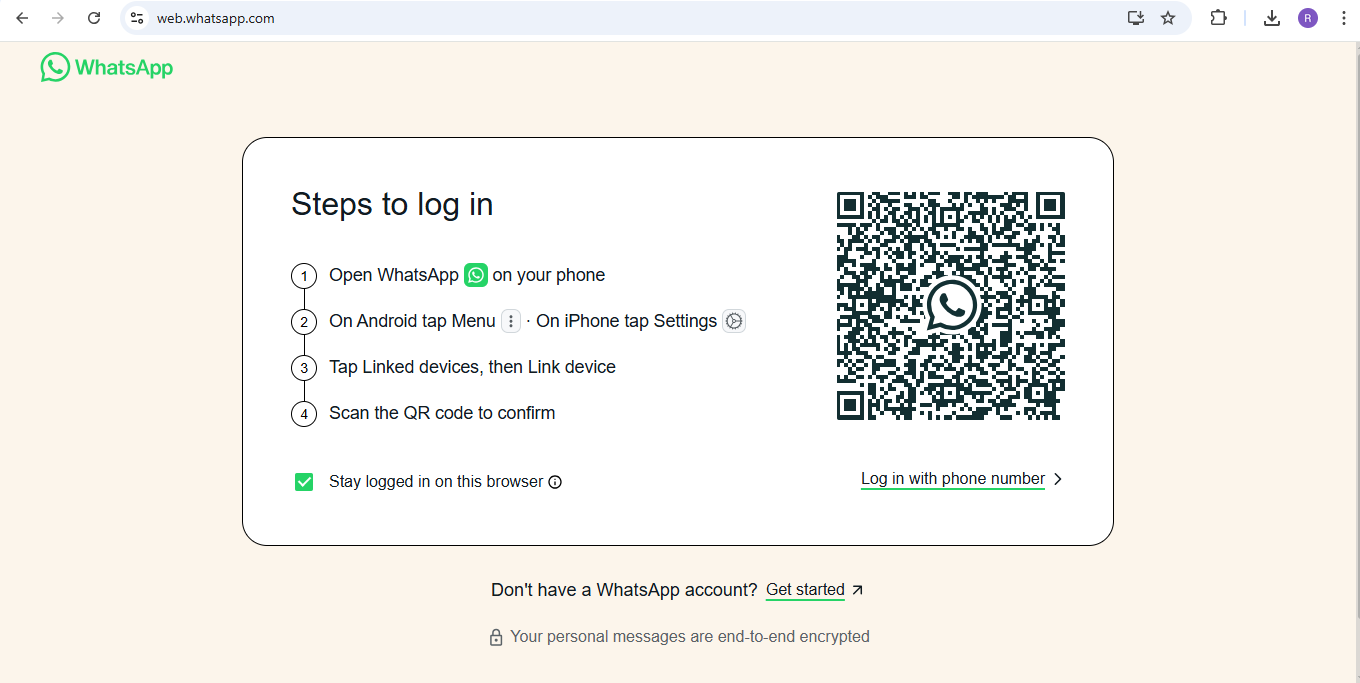
To get started, open your preferred web browser and visit web.whatsapp.com. You will see a QR code on the screen. This code is unique to your session and will be used to sync your phone with the web interface.
Step 2 – Open WhatsApp on Your Phone
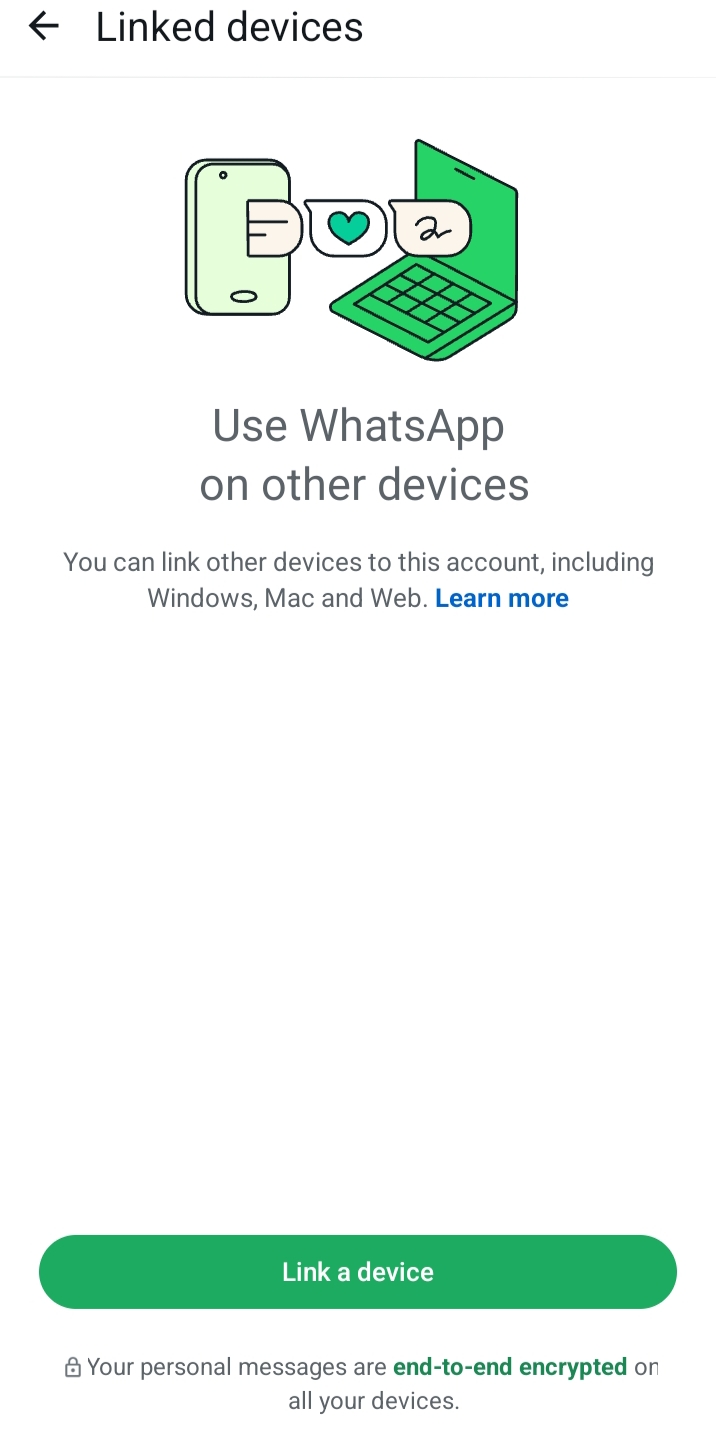
On your mobile device, open the WhatsApp app:
- Android: Tap the three-dot menu at the top-right corner and select Linked Devices.
- iPhone: Go to Settings > Linked Devices.
This section lets you manage all devices connected to your WhatsApp account.
Step 3 – Scan the QR Code
Tap Link a Device on your phone and scan the QR code displayed on your computer screen. Once scanned, your chats and contacts will instantly appear on WhatsApp on Web. You can now send messages, share files, and make calls directly from your browser.
Step 4 – Stay Logged In (Optional)
If you’re using a personal computer, check the Keep me signed in option before scanning the QR code. This prevents repeated logins and lets you access WhatsApp quickly every time you open the browser.
Tips for Secure WhatsApp Web Login
- Always log out from public or shared computers.
- Ensure your phone remains connected to the internet for real-time sync.
- Use an updated browser for security and smooth performance.
- Enable two-step verification on your WhatsApp account for added protection.
By following these steps, you can enjoy all the benefits of WhatsApp on Web while keeping your account secure and fully functional.
How to Install and Use WhatsApp Desktop?
The WhatsApp Desktop app is a standalone program for Windows or Mac that lets you access your chats without opening a browser. It provides additional features compared to WhatsApp on Web, including faster performance, desktop notifications, and offline access. Follow this guide to install and set it up.
Step 1 – Download the WhatsApp Desktop App
- Visit the official WhatsApp website: https://www.whatsapp.com/download
- Choose the correct version for your operating system: Windows or Mac.
- Click Download and wait for the installer to finish downloading.
Step 2 – Install the App on Your Computer
- Open the downloaded installer file.
- Follow the on-screen instructions to complete the installation.
- Once installed, launch the WhatsApp Desktop app.
Step 3 – Log in to WhatsApp Desktop
- Open the app and you will see a QR code similar to WhatsApp Web.
- Open WhatsApp on your phone, go to Linked Devices, and tap Link a Device.
- Scan the QR code on your desktop app. Your chats will sync automatically, allowing you to use WhatsApp just like on your phone.
Benefits of WhatsApp Desktop Compared to WhatsApp Web
- Faster Performance: The desktop app runs smoother than browser-based WhatsApp.
- Offline Access: You can view messages even when your browser is closed (as long as your phone is connected).
- Desktop Notifications: Get instant notifications directly on your computer without relying on browser alerts.
- Better Stability: Less likely to face browser-related issues like page reloads or crashes.
Tips for a Better Desktop Experience
- Keep your app updated to access new features and security fixes.
- Enable desktop notifications for important messages.
- Close unnecessary programs to ensure faster performance.
- Always log out if you’re using a shared computer.
Web vs Desktop comparison
| Feature | WhatsApp Web | WhatsApp Desktop |
|---|---|---|
| Access type | Browser | Installed app |
| Speed | Medium | High |
| Notifications | Browser-based | System-level |
| Stability | Moderate | High |
| Offline support | Limited | Better |
What features can you use on WhatsApp Web and Desktop?
Both WhatsApp on Web and the WhatsApp Desktop app offer powerful features that make messaging from your computer easy and efficient. While many features are shared, some are specific to the web or desktop experience, giving you multiple ways to stay connected without constantly using your phone.
Chat and Messaging
You can send and receive text messages instantly from your computer, continuing conversations just as you would on your phone. Group chats can be created or managed directly from your desktop, allowing seamless collaboration with friends, family, or colleagues. Using WhatsApp on Web makes it quick to reply to messages without switching devices, saving time during busy work sessions.
Voice and Video Calls
The desktop app allows you to make both voice and video calls directly from your computer. While the desktop app supports all types of calls, WhatsApp on Web currently supports video calls in certain browsers. All calls are synced with your mobile device, so your chat history and call logs remain consistent across platforms.
Sending Files and Media
Sharing photos, videos, documents, and other files is simple and fast. On both WhatsApp on Web and the desktop app, you can drag and drop files directly into chats, making it easier to send large media or multiple files at once. You also have the ability to preview media before sending, ensuring accuracy and convenience.
Notifications and Alerts
Desktop notifications keep you informed of new messages without the need to open the app constantly. On WhatsApp on Web, browser notifications allow you to stay updated even when the tab is minimized. You can also customize notification settings to avoid distractions while working or focusing on other tasks.
Status Updates and Emojis
Both web and desktop versions allow you to view and post status updates directly from your computer. You can use emojis, GIFs, and stickers to make conversations more expressive. All updates and media sync seamlessly with your phone, ensuring consistency across devices.
Search and Chat Management
You can quickly search for messages, contacts, or groups to find the information you need. Chats can be archived or marked as unread to help you stay organized. WhatsApp on Web makes it easier to manage multiple conversations efficiently without having to switch back and forth between devices.
What are the key entities in WhatsApp Web ecosystem?
Understanding WhatsApp Web requires breaking down its core entities:
- WhatsApp Web Entity: A browser-based session layer that mirrors mobile data using encrypted synchronization.
- WhatsApp Desktop Entity: A native application layer designed for performance optimization and system integration.
- QR Authentication Entity: A secure handshake protocol that links devices without passwords.
- Linked Devices Entity: A multi-device management system that tracks active sessions and sync states.
- Relationship Map:
- QR Authentication enables Linked Devices
- Linked Devices control Web/Desktop sessions
- Mobile app acts as the root authority
What are KPIs for WhatsApp Web usage efficiency?
To measure productivity improvement when using WhatsApp on computer systems:
Key performance indicators
- Response Time Reduction (%)
- Average improvement: 30%–60%
- Typing Speed Efficiency
- Desktop keyboard increases speed by 2–3x vs mobile
- File Handling Speed
- 40% faster media sharing via drag-drop
- Session Continuity Rate
- Desktop users maintain longer active chat sessions
Productivity formula (example)
Productivity Score =
(Messages handled per hour × Response speed) / Interruptions
Example:
- Mobile: 40 msgs/hour → baseline 100
- Desktop: 70 msgs/hour → +75% efficiency score
What are common mistakes while using WhatsApp Web?
- Poor device security: Using public computers without logout increases data exposure risk.
- Weak internet stability: Disconnected phone breaks synchronization chain.
- Ignoring Linked Devices audit: Unmonitored sessions may stay active on old devices.
- Not updating browser or app: Outdated versions cause sync errors and lag.
What are advanced WhatsApp Web strategies?
Multi-device workflow optimization
Use desktop for work communication and mobile for personal chats.
Notification prioritization system
Enable only high-priority alerts to reduce distraction load.
Keyboard shortcut usage
Speeds up navigation:
- Ctrl + N → New chat
- Ctrl + Shift + ] → Next chat
Business routing system
Assign chats:
- Customers → Desktop
- Quick replies → Mobile automation
What tools enhance WhatsApp Web performance?
Browser tools
- Chrome (best compatibility)
- Edge (memory efficiency)
Security tools
- Two-step verification
- Device monitoring via Linked Devices
Productivity tools
- Clipboard managers
- Notification managers
- Cloud file transfer tools
How to measure WhatsApp Web performance?
Core metrics
- Average response time
- Messages per hour
- Active session duration
- File transfer success rate
Benchmark table
| User Type | Efficiency Gain |
|---|---|
| Casual user | 0–10% |
| Freelancer | 20–40% |
| Business user | 40–70% |
What are future trends of WhatsApp Web and Desktop?
- AI integration: Smart reply suggestions and automated chat summarization.
- Multi-device independence: Future systems may remove dependency on mobile connection.
- Cloud-first messaging: Direct server-based syncing without phone dependency.
- Browser-native communication: Web apps evolving into full communication platforms.
What are common problems and fixes in WhatsApp Web?
- QR code not scanning
- Fix: Clean camera + refresh browser session.
- Messages not syncing
- Fix: Check phone internet connection.
- Login failure
- Fix: Clear cache + update browser.
- Security warnings
- Fix: Re-authenticate via Linked Devices.
What is the scaling framework for WhatsApp Web usage?
- Level 1: Personal use: Basic chatting and file sharing.
- Level 2: Freelancer use: Client communication + file management.
- Level 3: Business use: Customer support system + workflow integration.
Expert insight
WhatsApp Web and Desktop are not just messaging extensions—they form a productivity ecosystem. Users who integrate keyboard workflows, notification control, and multi-device management experience significantly higher communication efficiency and faster business response cycles compared to mobile-only usage.
Frequently Asked Questions (FAQs)
Do I need to install WhatsApp Desktop to use WhatsApp on my computer?
No, you can use WhatsApp on Web directly from a browser. The desktop app is optional but offers additional benefits like faster performance, offline access, and desktop notifications.
How do I log in to WhatsApp Web?
To log in, go to web.whatsapp.com on your computer, open WhatsApp on your phone, select Linked Devices, and scan the QR code displayed on your screen.
Why is my WhatsApp Web QR code not scanning?
This can happen if your phone camera is dirty, the QR code isn’t fully visible, or lighting is poor. Make sure your phone screen is unlocked and the code is clear. Refresh the page if needed.
Can I make voice and video calls on WhatsApp Web?
You can make video calls on certain browsers, but voice calls are fully supported only on the desktop app. Both versions sync with your mobile device.
Is WhatsApp Web secure?
Yes, WhatsApp Web uses end-to-end encryption like the mobile app. For extra security, log out from public computers and enable two-step verification on your account.
Can I use WhatsApp Web without my phone being connected to the internet?
No, your phone must remain connected to the internet for WhatsApp Web to sync messages and function properly.
