
Tired of constantly checking your phone for WhatsApp messages? Did you know you can access all your chats, send files, and even make calls directly from your computer?
In this guide, we’ll show you how to use WhatsApp on Web and Desktop in 2026, making it easier than ever to stay connected while working or browsing.
Whether you want to log in quickly via WhatsApp Web or install the desktop app, this step-by-step guide has you covered.
What is WhatsApp on Web and Desktop?
WhatsApp offers two convenient ways to use its messaging service on your computer: WhatsApp on Web and the desktop app.
WhatsApp on Web allows you to access your chats directly through a browser without installing any software. Simply visit the website, scan the QR code with your phone, and you’re ready to start messaging. This is perfect for quick access from any device without downloads.
On the other hand, the Web WhatsApp on Desktop app is a standalone program you install on your Windows or Mac computer. It provides additional benefits like faster performance, desktop notifications, and offline access to your chats. While both versions sync seamlessly with your phone, the desktop app is ideal for frequent users who want a more stable, dedicated experience.
Both options let you send messages, share files, make voice and video calls, and stay connected without reaching for your phone constantly.
How to Log in to WhatsApp on Web in 2026
Logging in to WhatsApp on Web is fast and convenient, letting you access all your chats directly from a browser. Follow this detailed guide for a smooth login experience.
Step 1 – Open WhatsApp Web on Your Computer
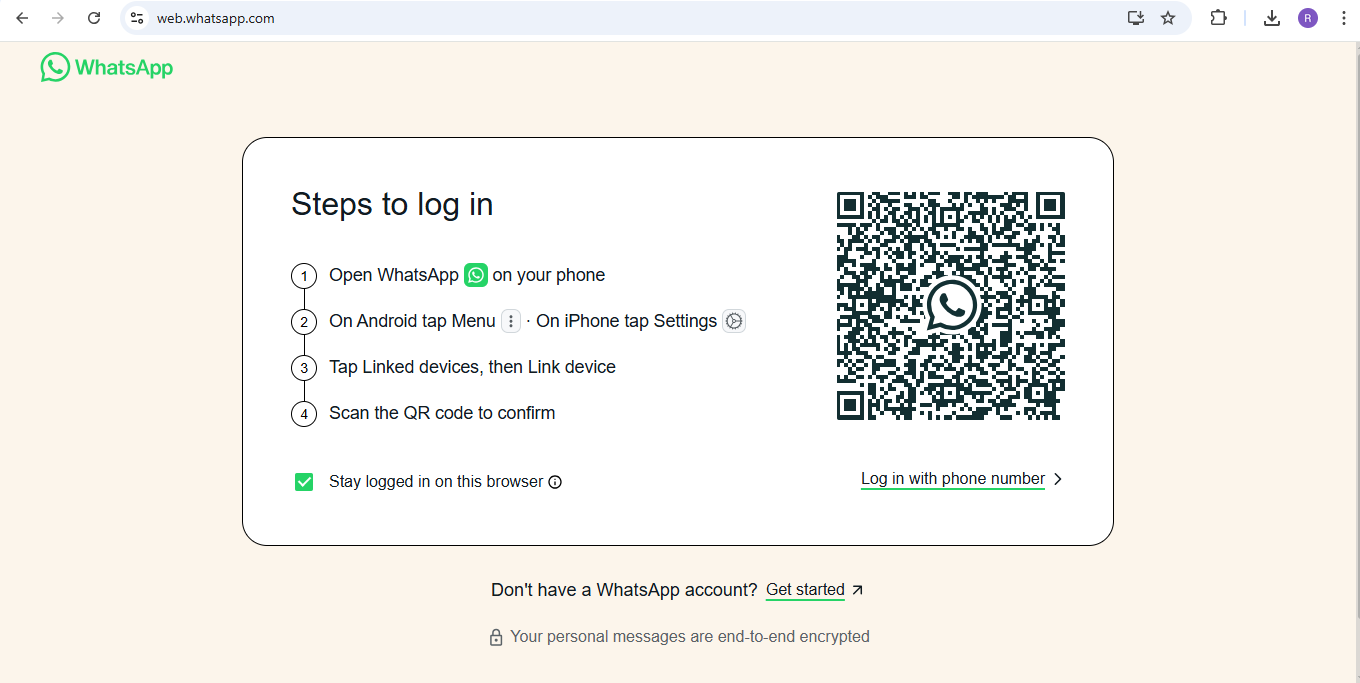
To get started, open your preferred web browser and visit web.whatsapp.com. You will see a QR code on the screen. This code is unique to your session and will be used to sync your phone with the web interface.
Step 2 – Open WhatsApp on Your Phone
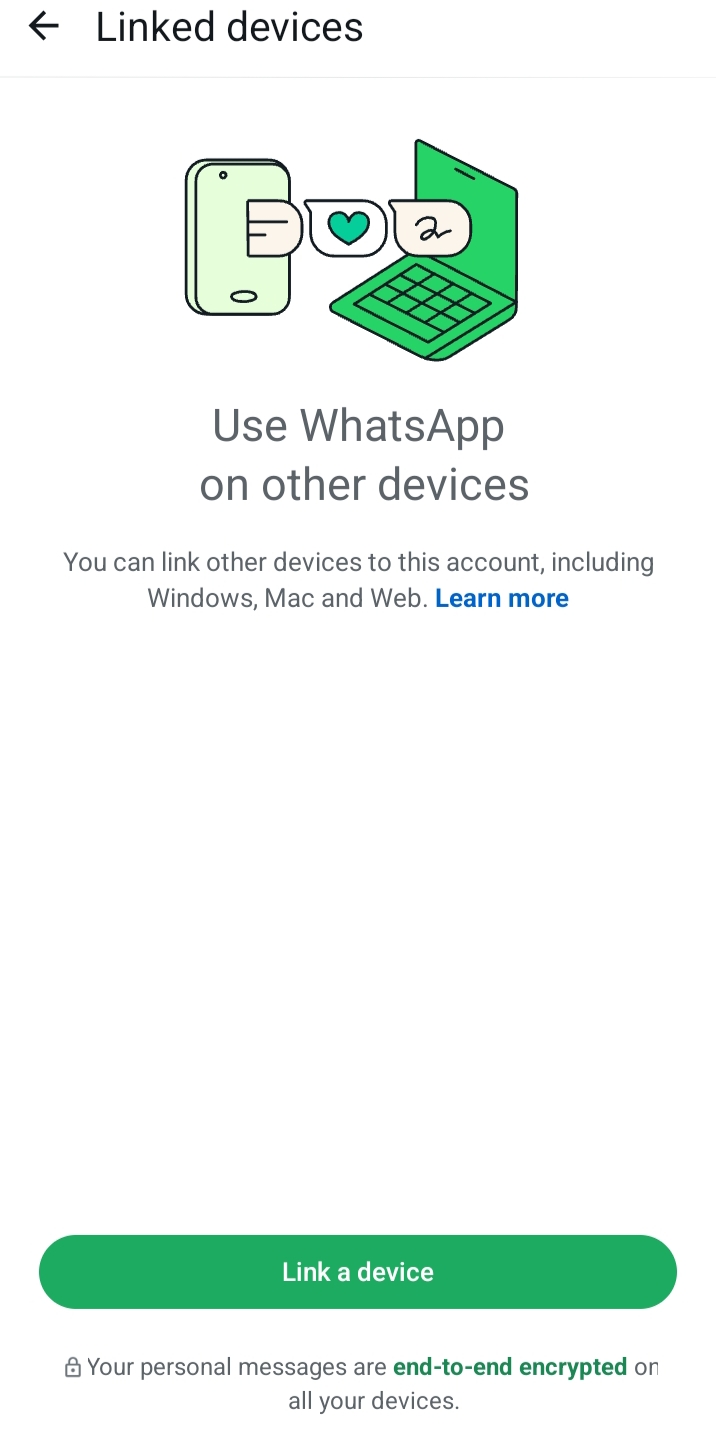
On your mobile device, open the WhatsApp app:
- Android: Tap the three-dot menu at the top-right corner and select Linked Devices.
- iPhone: Go to Settings > Linked Devices.
This section lets you manage all devices connected to your WhatsApp account.
Step 3 – Scan the QR Code
Tap Link a Device on your phone and scan the QR code displayed on your computer screen. Once scanned, your chats and contacts will instantly appear on WhatsApp on Web. You can now send messages, share files, and make calls directly from your browser.
Step 4 – Stay Logged In (Optional)
If you’re using a personal computer, check the Keep me signed in option before scanning the QR code. This prevents repeated logins and lets you access WhatsApp quickly every time you open the browser.
Tips for Secure WhatsApp Web Login
- Always log out from public or shared computers.
- Ensure your phone remains connected to the internet for real-time sync.
- Use an updated browser for security and smooth performance.
- Enable two-step verification on your WhatsApp account for added protection.
By following these steps, you can enjoy all the benefits of WhatsApp on Web while keeping your account secure and fully functional.
How to Install and Use WhatsApp Desktop
The WhatsApp Desktop app is a standalone program for Windows or Mac that lets you access your chats without opening a browser. It provides additional features compared to WhatsApp on Web, including faster performance, desktop notifications, and offline access. Follow this guide to install and set it up.
Step 1 – Download the WhatsApp Desktop App
- Visit the official WhatsApp website: https://www.whatsapp.com/download
- Choose the correct version for your operating system: Windows or Mac.
- Click Download and wait for the installer to finish downloading.
Step 2 – Install the App on Your Computer
- Open the downloaded installer file.
- Follow the on-screen instructions to complete the installation.
- Once installed, launch the WhatsApp Desktop app.
Step 3 – Log in to WhatsApp Desktop
- Open the app and you will see a QR code similar to WhatsApp Web.
- Open WhatsApp on your phone, go to Linked Devices, and tap Link a Device.
- Scan the QR code on your desktop app. Your chats will sync automatically, allowing you to use WhatsApp just like on your phone.
Benefits of WhatsApp Desktop Compared to WhatsApp Web
- Faster Performance: The desktop app runs smoother than browser-based WhatsApp.
- Offline Access: You can view messages even when your browser is closed (as long as your phone is connected).
- Desktop Notifications: Get instant notifications directly on your computer without relying on browser alerts.
- Better Stability: Less likely to face browser-related issues like page reloads or crashes.
Tips for a Better Desktop Experience
- Keep your app updated to access new features and security fixes.
- Enable desktop notifications for important messages.
- Close unnecessary programs to ensure faster performance.
- Always log out if you’re using a shared computer.
Features You Can Use on WhatsApp Web and Desktop
Both WhatsApp on Web and the WhatsApp Desktop app offer powerful features that make messaging from your computer easy and efficient. While many features are shared, some are specific to the web or desktop experience, giving you multiple ways to stay connected without constantly using your phone.
Chat and Messaging
You can send and receive text messages instantly from your computer, continuing conversations just as you would on your phone. Group chats can be created or managed directly from your desktop, allowing seamless collaboration with friends, family, or colleagues. Using WhatsApp on Web makes it quick to reply to messages without switching devices, saving time during busy work sessions.
Voice and Video Calls
The desktop app allows you to make both voice and video calls directly from your computer. While the desktop app supports all types of calls, WhatsApp on Web currently supports video calls in certain browsers. All calls are synced with your mobile device, so your chat history and call logs remain consistent across platforms.
Sending Files and Media
Sharing photos, videos, documents, and other files is simple and fast. On both WhatsApp on Web and the desktop app, you can drag and drop files directly into chats, making it easier to send large media or multiple files at once. You also have the ability to preview media before sending, ensuring accuracy and convenience.
Notifications and Alerts
Desktop notifications keep you informed of new messages without the need to open the app constantly. On WhatsApp on Web, browser notifications allow you to stay updated even when the tab is minimized. You can also customize notification settings to avoid distractions while working or focusing on other tasks.
Status Updates and Emojis
Both web and desktop versions allow you to view and post status updates directly from your computer. You can use emojis, GIFs, and stickers to make conversations more expressive. All updates and media sync seamlessly with your phone, ensuring consistency across devices.
Search and Chat Management
You can quickly search for messages, contacts, or groups to find the information you need. Chats can be archived or marked as unread to help you stay organized. WhatsApp on Web makes it easier to manage multiple conversations efficiently without having to switch back and forth between devices.
Tips for Smooth WhatsApp Web and Desktop Experience
Using WhatsApp on Web or the desktop app can greatly improve your workflow and make messaging more convenient. However, to ensure a smooth experience, it’s important to follow some key practices. These tips will help you avoid slow loading, message delays, and login issues, making your WhatsApp usage seamless and efficient.
Keep Your Browser or App Updated
For WhatsApp on Web, using an up-to-date browser is essential. Browsers like Chrome, Firefox, Edge, and Safari frequently release updates that fix security vulnerabilities, improve speed, and enhance compatibility with modern web apps. Running an outdated browser can result in errors, crashes, or features not functioning properly.
Similarly, keeping the WhatsApp desktop app updated ensures that you have access to the latest features, performance improvements, and security fixes. Regular updates can improve everything from file sharing to notifications, guaranteeing a smooth and reliable experience.
Ensure a Stable Internet Connection
A stable internet connection is the backbone of using WhatsApp on your computer. Both WhatsApp on Web and the desktop app sync in real time with your phone, so any interruption in connectivity can cause message delays or prevent chats from updating.
If your Wi-Fi signal is weak or fluctuates frequently, you might notice messages taking longer to send or notifications appearing late. For the best experience, use a reliable Wi-Fi or wired connection and avoid switching networks while actively using WhatsApp on your computer.
Enable Notifications Carefully
Notifications help you stay informed about new messages without constantly checking your screen. On WhatsApp on Web, browser notifications alert you when a message arrives even if the tab is minimized.
The desktop app provides notifications directly on your computer’s taskbar or notification center. Configuring notifications properly ensures you stay updated on important messages while avoiding unnecessary distractions. Adjusting sounds, pop-ups, and previews can make messaging smoother and more organized.
Log Out from Shared or Public Devices
Security is crucial when using WhatsApp on Web on a shared or public computer. Logging in without signing out afterward can put your account at risk, as anyone with access to the same device could read your messages.
Always log out after using a public computer or shared device. You can also manage your logged-in devices from your phone under Linked Devices to check active sessions and remotely log out from devices you no longer use.
Use Two-Step Verification for Extra Security
Two-step verification adds an extra layer of protection to your WhatsApp account. Even if someone scans your QR code to access WhatsApp on Web, they cannot log in without entering your verification PIN.
This feature protects sensitive conversations from unauthorized access. Setting up two-step verification is easy and highly recommended for users who frequently access WhatsApp from multiple devices or computers.
Close Unnecessary Tabs and Programs
Performance can be affected if your computer runs many applications or browser tabs while using WhatsApp on Web. Each open tab or program consumes system resources, slowing down message sending and chat loading.
To ensure a faster experience, close tabs you don’t need and minimize heavy programs while using WhatsApp. This simple practice helps both the web and desktop versions run smoothly and respond efficiently.
Regularly Clear Browser Cache for WhatsApp Web
Over time, your browser collects cached files, cookies, and temporary data, which can slow down web apps, including WhatsApp on Web. Clearing your browser cache periodically can resolve issues like slow message loading, media upload errors, or login problems.
Most browsers allow you to clear cache and cookies from settings. Doing this regularly ensures WhatsApp Web runs efficiently and smoothly, providing an experience comparable to the desktop app.
Common Problems and How to Fix WhatsApp Web Login Issues
While WhatsApp on Web is convenient, users sometimes encounter issues during login or while using the platform. Understanding these common problems and knowing how to fix them ensures a smoother messaging experience.
QR Code Not Scanning
One of the most frequent issues during WhatsApp on Web login is the QR code not scanning properly. This can happen if the phone camera lens is dirty, the QR code on the screen is not fully visible, or the lighting is poor.
To fix this, clean your phone’s camera and ensure the entire QR code is clearly visible on your computer screen. Refresh the browser if necessary, and make sure your phone screen is unlocked while scanning. Using the latest version of the WhatsApp app also helps prevent scanning issues.
Messages Not Syncing
Sometimes, messages fail to sync between your phone and WhatsApp on Web, causing delays or missing chats. This usually happens if your phone loses its internet connection or if the web session is disconnected.
Ensure that your phone remains connected to the internet and that the WhatsApp app is running in the background. Refresh the web page if syncing issues persist. Restarting your phone or browser can also resolve temporary connectivity problems.
Login Problems
Login issues can occur if the browser is outdated, cookies are disabled, or there is an active session limit on other devices. These problems can prevent you from completing the WhatsApp on Web login process.
To fix this, update your browser to the latest version and enable cookies. Log out from any old or inactive sessions on your phone under Linked Devices. Clearing your browser cache and restarting the web page can also help solve login errors.
Security and Access Errors
Sometimes, WhatsApp may temporarily block login attempts from a new device for security reasons. You might see messages asking you to verify your account or wait before trying again.
Follow the instructions on your phone to verify your account, and avoid repeatedly attempting to scan the QR code. Enabling two-step verification adds an extra layer of security and helps prevent unauthorized access.
By following these steps, you can resolve most common issues related to WhatsApp on Web login and enjoy uninterrupted messaging on your computer.
Final Thoughts
Using WhatsApp on Web and the desktop app in 2026 makes staying connected easier and more convenient than ever. Both platforms allow you to send messages, make calls, share files, and manage chats directly from your computer, reducing the need to constantly check your phone.
The web version is ideal for quick access from any browser, while the desktop app provides added stability, faster performance, and offline capabilities. By following best practices for login, security, and connection stability, you can enjoy a smooth and reliable messaging experience on your computer.
Whether you are using WhatsApp on Web for work, study, or staying in touch with friends and family, these tips and solutions will help you get the most out of your WhatsApp experience in 2026.
Frequently Asked Questions (FAQs)
Do I need to install WhatsApp Desktop to use WhatsApp on my computer?
No, you can use WhatsApp on Web directly from a browser. The desktop app is optional but offers additional benefits like faster performance, offline access, and desktop notifications.
How do I log in to WhatsApp Web?
To log in, go to web.whatsapp.com on your computer, open WhatsApp on your phone, select Linked Devices, and scan the QR code displayed on your screen.
Why is my WhatsApp Web QR code not scanning?
This can happen if your phone camera is dirty, the QR code isn’t fully visible, or lighting is poor. Make sure your phone screen is unlocked and the code is clear. Refresh the page if needed.
Can I make voice and video calls on WhatsApp Web?
You can make video calls on certain browsers, but voice calls are fully supported only on the desktop app. Both versions sync with your mobile device.
Is WhatsApp Web secure?
Yes, WhatsApp Web uses end-to-end encryption like the mobile app. For extra security, log out from public computers and enable two-step verification on your account.
Can I use WhatsApp Web without my phone being connected to the internet?
No, your phone must remain connected to the internet for WhatsApp Web to sync messages and function properly.
